














































This brief tutorial introduces you to the many uses of web scraping. Also learn how Selenium, an open source web scraping tool, works.
Web scraping helps to extract large quantities of data from the internet, which can be used for various purposes. It can be useful when you want to check your competitors’ prices, market trends, etc, to make the right business decisions. Web scraping is important in academic research to collect data for various economic or social studies. It is also used to collect data for training AI models — for example, to scrape tweets for training a sentiment analysis model. Other uses include monitoring volatile flight prices and checking for job opportunities from multiple websites.
As this field is evolving, it is important for us to have a basic knowledge of it. Let’s begin by understanding how a popular web scraping package called Selenium works. Selenium helps us with browser automation in multiple ways. It is compatible with almost all the programming languages including C#, Groovy, Python, Ruby, and more. It works on all major operating systems like Windows, Linux and MacOS, and can be used for testing most modern browsers — you may need to install the drivers for the associated browser. Basically, Selenium has a web driver that can work interchangeably with different web browsers. The browser drivers typically open an instance of the browser and access it.
Let us get started with the installation and use of this tool. We are going to use Selenium in Python. You can install it using the following command as shown in Figure 1.
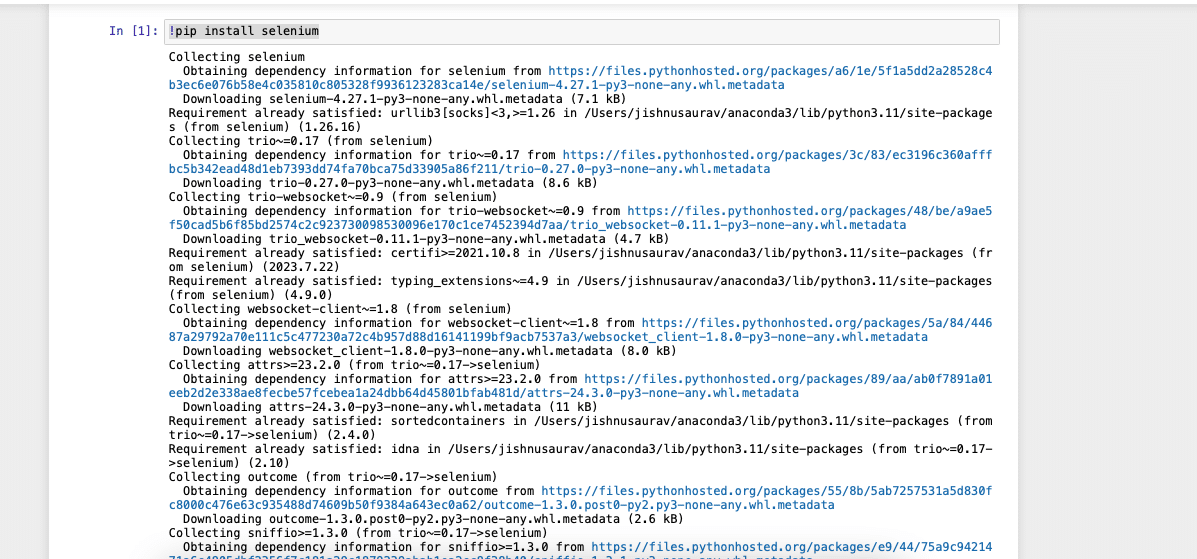
!pip install selenium
It is easier if you use a Jupyter Notebook for this. Once the installation is done, you can install the browser driver that we discussed above. I will be using the Chrome browser driver, but you can also use Firefox or any other preferred browser. You can download the Chrome driver from https://sites.google.com/chromium.org/driver/downloads.
The first step is to import the installed Selenium library and then initiate the Chrome driver. This can be done using the code below:
from selenium import webdriver
sd=webdriver.Chrome()
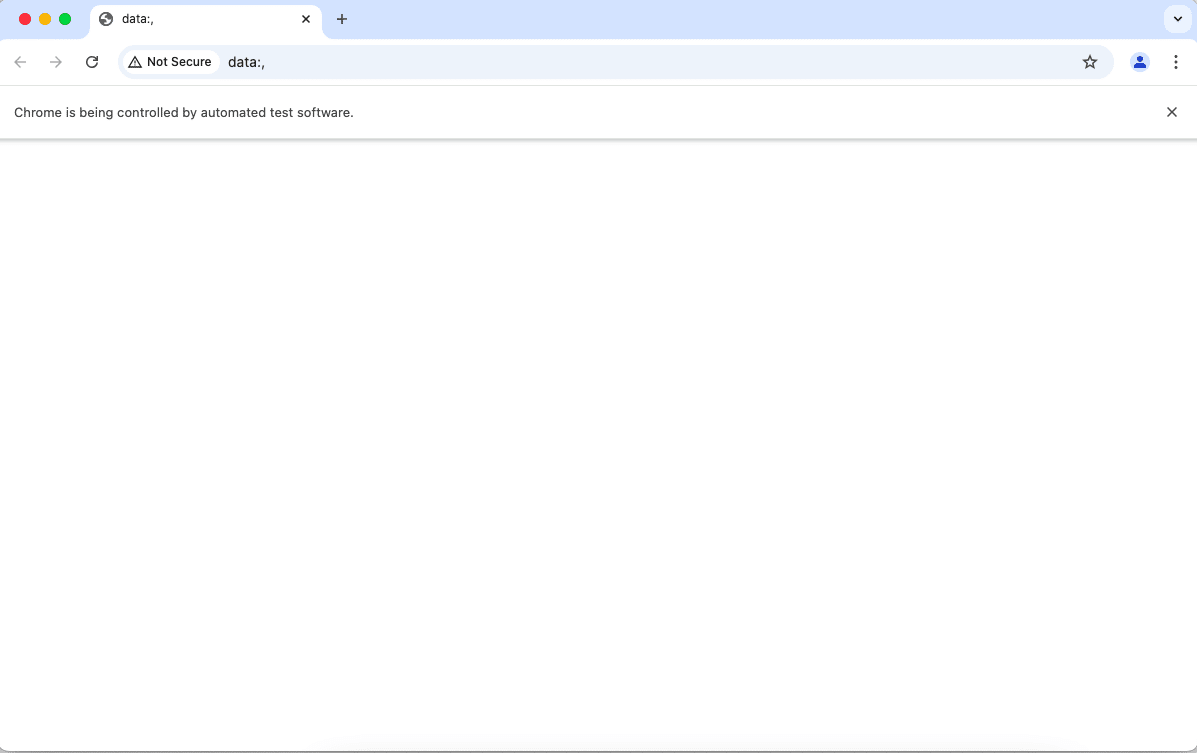
Once you run this, an instance of your Google Chrome browser will open. All the scraping we do will happen through this browser window as shown in Figure 2.
Since we can’t scrape any website randomly without reading their terms and conditions, doing so can have some legal issues. So, we are going to use a website that is built for us to learn and practice web scraping. The link to this website is https://toscrape.com.
We can open this link in the same browser window shown in Figure 2. We will be using the following code. The site will look like what’s shown in Figure 3.
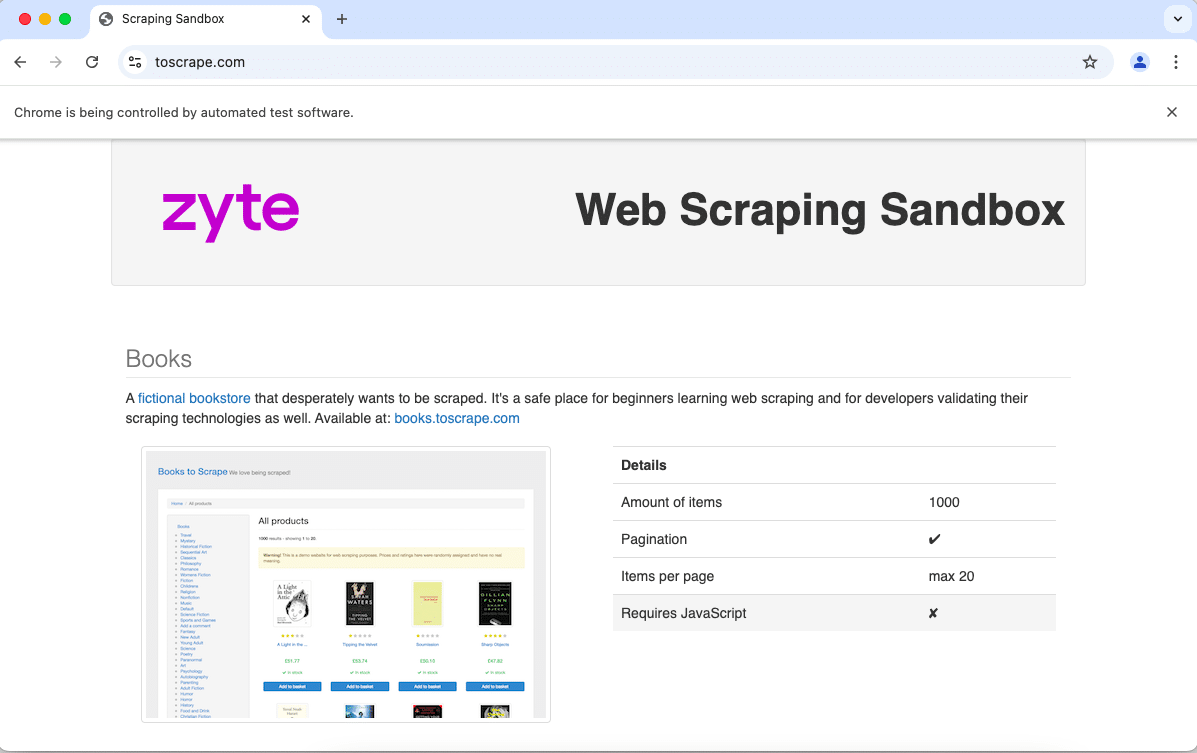
sd.get(‘https://toscrape.com’)
If everything is fine, you will see ‘Chrome is being controlled by automated test software’ at the top of the browser window.
Now let us try to extract the title of the page that we are scraping. We are basically using the tags of the web page to perform the extraction. We will import pandas to properly view the extracted tables and ‘By’ to extract via HTML tags. We can extract the title using the following code:
from selenium.webdriver.common.by import By
import pandas as pd
page_title = sd.title
print(“Page Title:”, page_title)
Next, we will extract all the tables in the given web page. We can do this using the <table> tag and the following code (Figure 4).
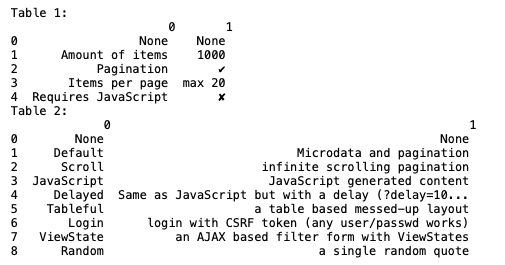
tables = sd.find_elements(By.TAG_NAME, “table”)
for index, table in enumerate(tables):
rows = table.find_elements(By.TAG_NAME, “tr”)
table_data = []
for row in rows:
cells = row.find_elements(By.TAG_NAME, “td”) cell_texts = [cell.text for cell in cells]
table_data.append(cell_texts)
df = pd.DataFrame(table_data)
print(f”Table {index + 1}:\n”, df)
Now let us extract all the links in the page as that may be important for us to get some more insights. We can do this using the following code. The output is shown in Figure 5.
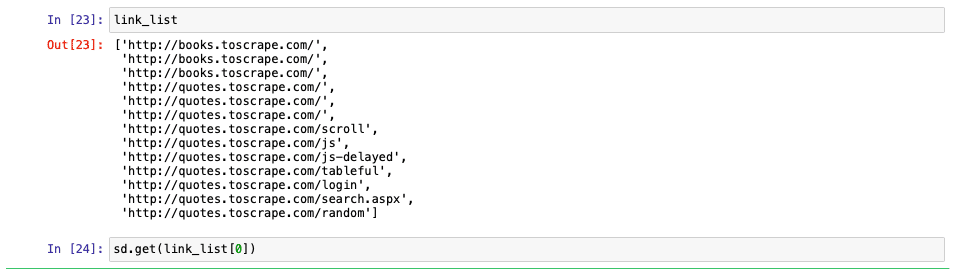
links = sd.find_elements(By.TAG_NAME, “a”)
link_list=[]
for index, link in enumerate(links):
href = link.get_attribute(“href”)
link_list.append(href)
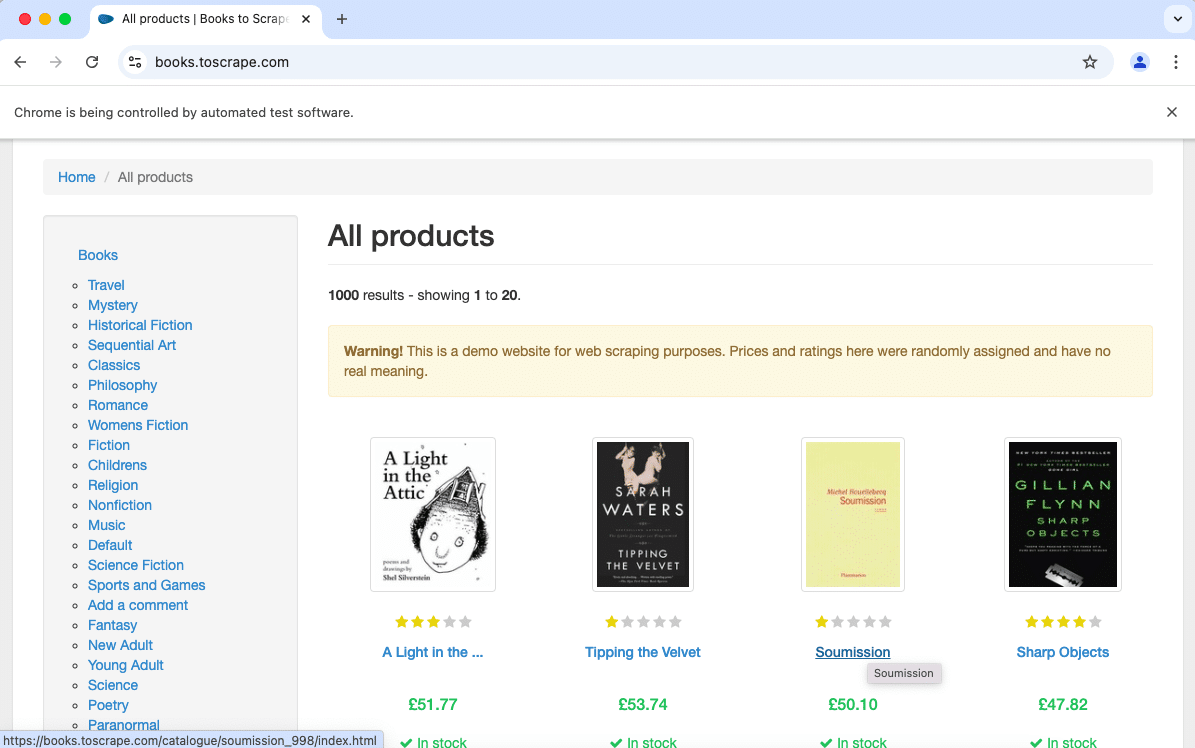
This will give us the list of the links that are there in the entire page. We can follow the same process with each of these links as shown in Figure 6.
There are so many other options that you can explore. Basically, every HTML tag can be read into Selenium and explored. You can look at the official documentation for more details. The deeper you go into web scraping and the more you understand it, the more fun you will have working with it!