
































































This is the 18th article in the DevOps series and it discusses the Ansible deployment of Monit, a free and open source utility for managing and monitoring processes, programs, files, directories and file systems on a *nix system.
Monit is a free and open source process supervision tool for *nix systems. It can also be used to monitor files and directories, and perform maintenance or repair tasks. The system status check can be done on the command line and viewed in a browser. It is written entirely in C and released under the AGPL 3.0 licence. In this 18th article in the DevOps series, we will learn to install and set up Monit for the system, as well as the SSH daemon and Nginx Web server monitoring.
Setting it up
A Debian 9 (x86_64) guest virtual machine (VM) using KVM/QEMU will be set up and monitored using Monit.
The host system is a Parabola GNU/Linux-libre x86_64 system and Ansible is installed using the distribution package manager. The version of Ansible used is 2.6.0, as indicated below:
$ ansible --version

ansible 2.6.0

  config file = /etc/ansible/ansible.cfg

  configured module search path = [‘/home/guest/.ansible/plugins/modules’, ‘/usr/share/ansible/plugins/modules’]

  ansible python module location = /usr/lib/python3.6/site-packages/ansible

  executable location = /usr/bin/ansible

  python version = 3.6.5 (default, May 11 2018, 04:00:52) [GCC 8.1.0]
The Ansible playbook and inventory file are created on the host system as follows:
ansible/inventory/kvm/

      /playbooks/configuration/
The inventory/kvm/inventory file contains the following code:
debian ansible_host=192.168.122.197 ansible_connection=ssh ansible_user=debian ansible_password=password
The default Debian 9 installation does not have the sudo package installed. Log in to the VM and install the sudo package. The ‘debian’ user also requires sudo access:
root@debian:~# apt-get install sudo

root@debian:~# adduser debian sudo

Adding user `debian’ to group `sudo’...

Adding user debian to group sudo

Done.
You should add an entry in /etc/hosts file for the Debian VM as shown below:
192.168.122.197 debian
You can now test connectivity from Ansible to the Debian 9 VM using the following command:
$ ansible -i inventory/kvm/inventory debian -m ping

debian | SUCCESS => {

    “changed”: false,

    “ping”: “pong”

}
Installation
The Debian software package repository is first updated and then Monit is installed. The net-tools package is installed to provide the netstat command in the system. The Monit service is then started using systemd. The Ansible playbook for the above tasks is provided below, for reference:
---

- name: Install Monit

  hosts: debian

  become: yes

  become_method: sudo

  gather_facts: yes

  tags: [install]

  tasks:

    - name: Update the software package repository

      apt:

         update_cache: yes

    - name: Install monit

      package:

        name: “{{ item }}”

        state: latest

      with_items:

          - net-tools

          - monit

    - name: Start monit service

      systemd:

        name: monit.service

        state: started
The above playbook can be invoked using the following command:
$ ansible-playbook -i inventory/kvm/inventory playbooks/configuration/monit.yml --tags install -vv -K
The -vv represents the verbosity in the Ansible output. You can use up to four ‘v’s for a more detailed output. The -K option prompts for the sudo password for the Debian user account.
Web interface
Monit software provides a Web interface that listens on port 2812. The default configuration file for Monit is located at /etc/monit/monitrc. The Web UI port needs to be enabled with basic login credentials. After making changes to the configuration file, the service needs to be restarted. The Ansible playbook to enable the Monit’s Web interface is as follows:
- name: Configure UI

  hosts: debian

  become: yes

  become_method: sudo

  gather_facts: true

  tags: [ui]

  tasks:

      - lineinfile:

          path: /etc/monit/monitrc

          regexp: ‘httpd port 2812’

          line: ‘set httpd port 2812 and’

- lineinfile:

    path: /etc/monit/monitrc

    regexp: ‘# allow admin:monit’

     line: ‘ allow admin:monit’

- name: Restart monit service

  systemd:

    name: monit.service

    state: restarted

- wait_for:

      port: 2812
The execution of the above playbook to enable the Web interface is shown below:
$ ansible-playbook -i inventory/kvm/inventory playbooks/configuration/monit.yml --tags ui -K

SUDO password:

PLAY [Install Monit] ****************************************

TASK [Gathering Facts] **************************************

ok: [debian]

PLAY [Configure UI] ******************************************

TASK [Gathering Facts] **************************************

ok: [debian]

TASK [lineinfile] ********************************************

changed: [debian]

TASK [lineinfile] ********************************************

changed: [debian]

TASK [Restart monit service] ********************************

changed: [debian]

TASK [wait_for] *********************************************

ok: [debian]

PLAY [Configure ssh monitoring] ******************************

TASK [Gathering Facts] **************************************

ok: [debian]

PLAY [Configure ssh monitoring] ******************************

TASK [Gathering Facts] **************************************

ok: [debian]

PLAY RECAP **************************************************

debian : ok=8 changed=3 unreachable=0 failed=0
You can use the netstat command to verify that Monit is listening on port 2812 as shown below:
$ netstat -na | grep :2812

tcp        0     0 0.0.0.0:2812                0.0.0.0:* LISTEN

tcp6       0     0 :::2812                          :::* LISTEN
The syntax validation of the Monit configuration file can be checked using the following command:
$ sudo monit -t

Control file syntax OK
The status of the Monit service can be verified as indicated below:
$ sudo monit status

Monit 5.20.0 uptime: 2m

System ‘debian’

status                                   Running

monitoring status                        Monitored

monitoring mode                          active

on reboot                                start

load average                             [0.00] [0.02] [0.00]

cpu                                      0.4%us 0.3%sy 0.0%wa

memory usage                             45.5 MB [4.6%]

swap usage                               0 B [0.0%]

uptime                                   56m

boot time                                Mon, 09 Jul 2018 15:03:06

data collected                           Mon, 09 Jul 2018 15:57:42
A summary report of the Monit service can also be printed in the console output as follows:
$ sudo monit summary

Monit 5.20.0 uptime: 4m

┌─────────────────────────────────┬────────────────────────────┬───────────────┐

│ Service Name             │ Status                     │ Type │

├─────────────────────────────────┼────────────────────────────┼───────────────┤

│ debian                           │ Running                      │ System │

└─────────────────────────────────┴────────────────────────────┴───────────────┘
The status of the Monit service can also be checked from the command line using systemctl, as shown below:
$ sudo systemctl status monit

[sudo] password for debian:

● monit.service - LSB: service and resource monitoring daemon

Loaded: loaded (/etc/init.d/monit; generated; vendor preset: enabled)

Active: active (running) since Mon 2018-07-09 15:55:42 IST; 1min 21s ago

Docs: man:systemd-sysv-generator(8)

Process: 2293 ExecStop=/etc/init.d/monit stop (code=exited, status=0/SUCCESS)

Process: 2298 ExecStart=/etc/init.d/monit start (code=exited, status=0/SUCCESS)

Tasks: 2 (limit: 4915)

CGroup: /system.slice/monit.service

└─2305 /usr/bin/monit -c /etc/monit/monitrc

Jul 09 15:55:42 debian systemd[1]: Stopped LSB: service and resource monitoring daemon.

Jul 09 15:55:42 debian systemd[1]: Starting LSB: service and resource monitoring daemon...

Jul 09 15:55:42 debian monit[2298]: Starting daemon monitor: monit.

Jul 09 15:55:42 debian systemd[1]: Started LSB: service and resource monitoring daemon.
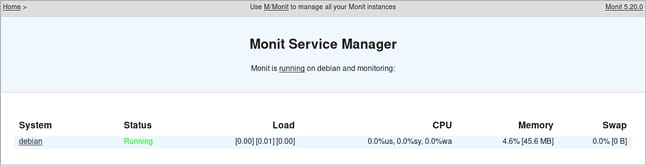
You can now open the URL http://192.168.122.197:2812 in a browser on the host system to see the default Monit home page, as shown in Figure 1.
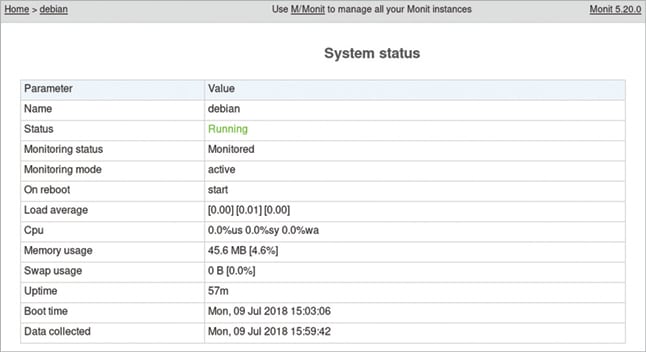
When you click on ‘debian’ under the System column, a more detailed status output is made available, as shown in Figure 2.
SSH
We can now set up Monit to monitor the SSH daemon running inside the VM. A check block for SSH needs to be added to the Monit configuration file and the service needs to be restarted. The Ansible playbook with the required SSH monitoring configuration is given below:
- name: Configure monitoring for nginx

  hosts: debian

  become: yes

  become_method: sudo

  gather_facts: true

  tags: [ssh]

tasks:

  - name: Add ssh monitoring

    blockinfile:

      path: /etc/monit/monitrc

      marker_begin: “ssh BEGIN”

      marker_end: “ssh END”

      block: |

        check process sshd with pidfile /var/run/sshd.pid

            group system

            group sshd

            start program = “/etc/init.d/ssh start”

            stop program = “/etc/init.d/ssh stop”

            if failed host localhost port 22 with proto ssh then restart

            if 5 restarts with 5 cycles then timeout

            depend on sshd_bin

            depend on sshd_rc

            depend on sshd_rsa_key

            depend on sshd_dsa_key

         check file sshd_bin with path /usr/sbin/sshd

           group sshd

           include /etc/monit/templates/rootbin

          check file sshd_rsa_key with path /etc/ssh/ssh_host_rsa_key

            group sshd

            include /etc/monit/templates/rootstrict

            check file sshd_dsa_key with path /etc/ssh/ssh_host_ecdsa_key

                group sshd

                include /etc/monit/templates/rootstrict

           check file sshd_rc with path /etc/ssh/sshd_config

             group sshd

             include /etc/monit/templates/rootrc

- name: Restart monit service

systemd:

   name: monit.service

   state: restarted
The above playbook can be invoked as follows:
$ ansible-playbook -i inventory/kvm/inventory playbooks/configuration/monit.yml --tags ssh -vv -K
The Monit status command in the command line now produces a more detailed output on monitoring the SSH daemon as shown below:
$ sudo monit status

Monit 5.20.0 uptime: 0m

Process ‘sshd’

    status                                               Running

    monitoring status                                    Monitored

    monitoring mode                                      active

    on reboot                                            start

    pid                                                  381

    parent pid                                            1

    uid                                                   0

    effective uid                                         0

    gid                                                   0

    uptime                                               1h 6m

    threads                                                1

    children                                               5

    cpu                                                   0.0%

    cpu total                                             0.0%

    memory                                                0.6% [6.2 MB]

    memory total                                          3.3% [33.2 MB]

    port response time                                    7.847 ms to localhost:22 type TCP/IP protocol SSH

    data collected                                        Mon, 09 Jul 2018 16:09:09

    File ‘sshd_bin’

      status                                              Accessible

      monitoring status                                   Monitored

      monitoring mode                                     active

      on reboot                                           start

      permission                                          755

      uid                                                 0

      gid                                                 0

      size                                               772.5 kB

      timestamp                                          Thu, 05 Apr 2018 13:18:00

      checksum                                           0c4b6da99164fb9a9291966b1c5b9902 (MD5)

      data collected                                     Mon, 09 Jul 2018 16:09:09

  File ‘sshd_rsa_key’

     status                                           Accessible

     monitoring status                                Monitored

     monitoring mode                                  active

     on reboot                                        start

     permission                                       600

     uid                                              0

     gid                                              0

     size                                             1.6 kB

    timestamp                                        Thu, 05 Apr 2018 13:18:18

    checksum                                         de068898089f42cd3ada992e18af4a23 (MD5)

    data collected                                   Mon, 09 Jul 2018 16:09:09

   File ‘sshd_dsa_key’

      status                                          Accessible

      monitoring status                               Monitored

      monitoring mode                                 active

      on reboot                                       start

      permission                                      600

      uid                                              0

      gid                                              0

      size                                            227 B

      timestamp                                      Thu, 05 Apr 2018 13:18:18

      checksum                                       abbf249f7ca23dd6f8186072dc0173a3 (MD5)

      data collected                                 Mon, 09 Jul 2018 16:09:09

   File ‘sshd_rc’

      status                                         Accessible

      monitoring status                              Monitored

      monitoring mode                                active

      on reboot                                      start

      permission                                     644

      uid                                            0

      gid                                            0

      size                                           3.2 kB

      timestamp                                     Thu, 05 Apr 2018 13:18:17

      checksum                                      bbad7ed242a834e831c7066901cee49e (MD5)

      data collected                                Mon, 09 Jul 2018 16:09:09

System ‘debian’

      status                                       Running

      monitoring status                            Monitored

      monitoring mode                              active

      on reboot                                    start

      load average                                [0.00] [0.00] [0.00]

      cpu                                         0.0%us 0.0%sy 0.0%wa

      memory usage                                47.6 MB [4.8%]

      swap usage                                  0 B [0.0%]

      uptime                                      1h 6m

      boot time                                   Mon, 09 Jul 2018 15:03:06

      data collected                              Mon, 09 Jul 2018 16:09:09
Nginx
We can also set up Nginx on the guest VM and monitor it using Monit. The software package repository is first updated and Nginx is then installed. The service is started and we wait for it to listen on port 80. The Nginx monitoring check is then added to the Monit configuration file and the Monit service is restarted. The Ansible playbook for the above tasks is provided below, for reference:
- name: Configure ssh monitoring

hosts: debian

become: yes

become_method: sudo

gather_facts: true

tags: [nginx]

tasks:

- name: Update the software package repository

  apt:

     update_cache: yes

- name: Install nginx

  package:

    name: “{{ item }}”

    state: latest

with_items:

    - nginx

- name: Start nginx

  service:

      name: nginx

      state: started

- wait_for:

     port: 80

- name: Add nginx monitoring

  blockinfile:

      path: /etc/monit/monitrc

      marker_begin: “nginx BEGIN”

      marker_end: “nginx END”

      block: |

         check process nginx with pidfile /var/run/nginx.pid

           group www

           group nginx

           start program = “/etc/init.d/nginx start”

           stop program = “/etc/init.d/nginx stop”

           if 5 restarts with 5 cycles then timeout

           depend nginx_bin

           depend nginx_rc

      check file nginx_bin with path /usr/sbin/nginx

         group nginx

          include /etc/monit/templates/rootbin

      check file nginx_rc with path /etc/init.d/nginx

         group nginx

          include /etc/monit/templates/rootbin

- name: Restart monit service

  systemd:

   name: monit.service

   state: restarted

The above playbook can be invoked as follows:

$ ansible-playbook -i inventory/kvm/inventory playbooks/configuration/monit.yml --tags nginx -vv -K
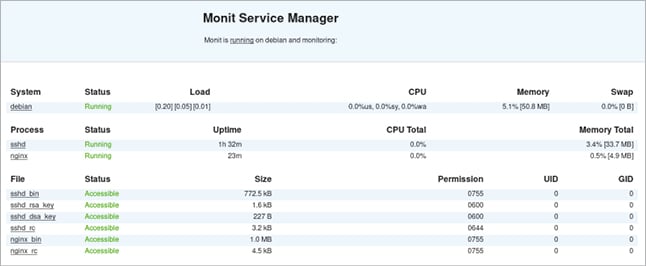
The Monit home page now contains the status of the system, the SSH daemon and the Nginx Web server, as shown in Figure 3.
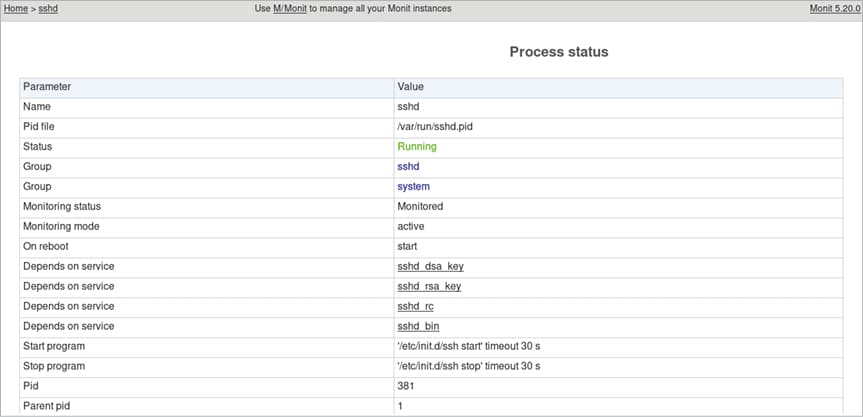
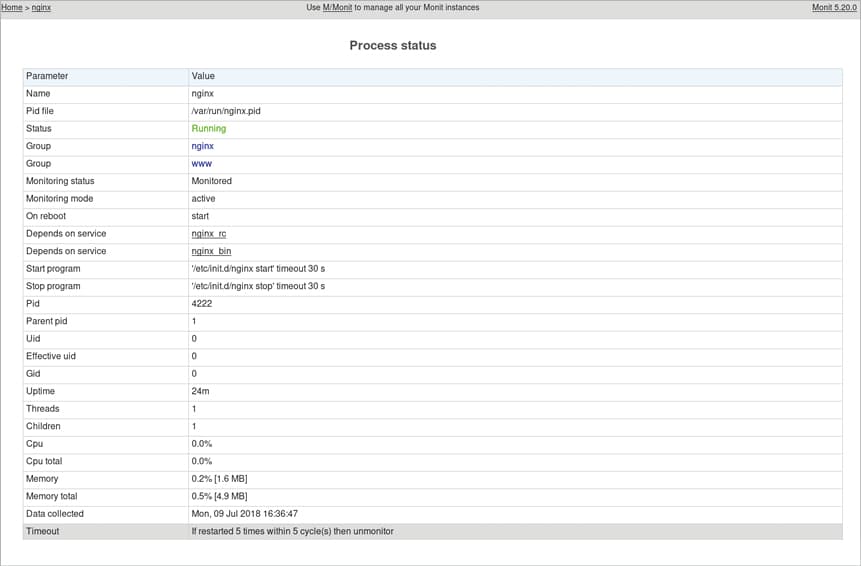
Clicking on the ‘sshd’ or ‘nginx’ link on the Monit home page provides a more detailed status page, as shown in Figures 4 and 5, respectively. You are encouraged to read the Monit manual at https://mmonit.com/monit/documentation/monit.html to learn more about its options and usage.