



















































Docker’s versatility and cross-platform support make it essential for developers, DevOps engineers, and systems administrators. This tutorial will guide you through setting up Docker on your operating system and introduce a complete security testing environment using Docker. By the end of it, you’ll have a functional test bed ready to explore vulnerabilities and security tools in a streamlined containerised environment.
Docker has revolutionised how developers and IT professionals deploy and manage applications, including security environments. According to a 2024 survey, over 70% of organisations now use containerisation, with Docker being the leading platform, powering millions of applications across different infrastructures. Docker’s ability to create isolated, replicable, and scalable environments makes it ideal for setting up security test beds. Whether you are a cybersecurity enthusiast or a professional looking to test vulnerabilities, Docker allows you to deploy complex environments like Kali Linux, Damn Vulnerable Web Application (DVWA), and Metasploitable across Windows, Linux, and macOS.
Setting up a security test bed using Docker
After successfully installing Docker Desktop on your system, the next step is to build a security test bed using Docker Compose, a powerful orchestration tool that simplifies the management of multi-container Docker environments. Docker Compose is particularly beneficial when you need to run multiple containers that must interact with each other, such as in a security test bed where you may be working with different vulnerable applications and security tools. By defining your setup in a simple YAML configuration file (compose.yml), Docker Compose allows you to easily deploy and manage multiple containers with a single command, making the process efficient and repeatable.
In this security lab, we will deploy three essential security-focused containers.
Kali Linux: A Debian-based Linux distribution known for penetration testing and security auditing. It comes with hundreds of pre-installed tools covering areas like network scanning, password cracking, forensics, and reverse engineering, making it a must-have for security professionals and researchers.
Damn Vulnerable Web Application (DVWA): DVWA is a web application intentionally designed to be vulnerable, allowing users to test their skills in exploiting common web application vulnerabilities like SQL injection, cross-site scripting (XSS), file inclusion, and more. It’s a safe environment to practice attacks and understand how to defend against them.
Metasploitable: This vulnerable virtual machine is designed for use with the Metasploit Framework. Metasploitable is an excellent environment for practicing penetration testing, particularly for network-based exploits. It’s loaded with vulnerable services, making it a great resource for learning how exploits work in a real-world scenario.
Using Docker Compose, we will configure and deploy three containers to create a comprehensive and flexible security test bed. This setup will allow you to experiment with a variety of security tools and techniques in an isolated, controlled environment without the risk of harming your main system.
Step 1: Add images in compose.yml
The compose.yml file is the backbone of Docker Compose. It is a simple, human-readable file that defines all the services (containers) you want to run, including their configurations, such as port mappings, network settings, and volumes for persistent storage. For this security test bed, the compose.yml file will specify the images for Kali Linux, DVWA, and Metasploitable, along with the necessary parameters to ensure they run correctly and are accessible from your host machine.
To make this process easier, you can either create the compose.yml file from scratch or download a pre-configured one that we’ve provided. This file ensures that the containers run in harmony, automatically configuring their interactions. It also makes it simple to start, stop, and scale your security environment with just a few commands.
Docker Compose is used because it:
- Simplifies multi-container deployment
- Enables easy configuration through YAML
- Allows services to run in isolated containers
- Supports networking between containers
- Has a one-command setup for complex environments
Step 2: Create a compose.yml file
Rather than manually creating each container and configuring their settings, we could create a compose.yml file that defines all the containers required for your security lab. This file includes the configuration for Kali Linux, DVWA, Snort3 and Metasploitable, and ensures that they work together seamlessly. It handles everything from downloading the necessary Docker images to setting up the required networking between the containers.
Let us create and save this file in an appropriate directory on your system where you want to run the security test bed.
What does the compose.yml file include?
- The images for Kali Linux, DVWA, Snort3 and Metasploitable.
- Port mappings to allow access to services from your host machine (e.g., DVWA web interface).
- Settings to ensure that each container runs correctly and can communicate with the others.
This step reduces the need for manual setup, saving time and ensuring that everything is configured correctly from the start.
Step 3: Run Docker Compose
Once you have the compose.yml file in place, it’s time to bring your security test bed to life. Navigate to the directory where you saved the file and open a terminal window. Docker Compose simplifies the process of running multiple containers by allowing you to use a single command to start everything up.
To start the containers for Kali Linux, DVWA, and Metasploitable, use the following command in the Windows command prompt from the directory where the compose.yml file is saved:
docker-compose up -d
This command will pull the necessary images from Docker Hub (if not already on your system), create the containers, and start them in detached mode (i.e., in the background) as illustrated in Figure 1. Each container will be set up according to the configuration in the compose.yml file, with the appropriate network settings, port mappings, and volumes.
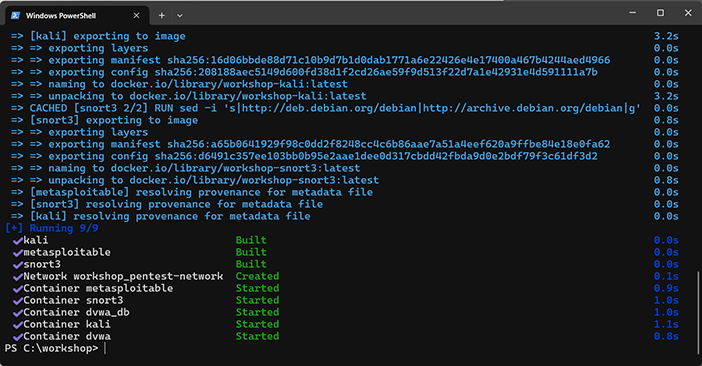
The actions done in this step are:
- Docker pulls the specified images for Kali Linux, DVWA, Snort3 and Metasploitable.
- Containers are created and started based on the configurations in the compose.yml file.
- Each container is networked with the other one so they can interact with each other as needed.
- Services (like the Kali GUI or DVWA web application) are made accessible via your browser or terminal.
Docker Compose makes it easy to manage these containers. You can bring down the entire setup with a single command (docker-compose down), restart services, or scale the environment by adding more containers.
version: ‘3’

services:

dvwa:

image: vulnerables/web-dvwa

container_name: dvwa

ports:

- “8080:80”

networks:

- pentest-network

tty: true

stdin_open: true

restart: unless-stopped

depends_on:

- dvwa_db

dvwa_db:

image: mariadb:10.1

container_name: dvwa_db

hostname: dvwa_db

volumes:

- dvwa_db_data:/var/lib/mysql

environment:

MYSQL_ROOT_PASSWORD: rootpass

MYSQL_DATABASE: dvwa

MYSQL_USER: dvwa

MYSQL_PASSWORD: p@ssw0rd

restart: unless-stopped

networks:

- pentest-network

kali:

build:

context: .

dockerfile: Dockerfile.kali

container_name: kali

shm_size: ‘512m’

ports:

- “7002:6901”

environment:

- VNC_PW=password

user: “root”

networks:

- pentest-network

tty: true

stdin_open: true

restart: unless-stopped

volumes:

- kali_data:/root

command: >

bash -c “apt-get update && apt-get install -y iputils-ping traceroute whois net-tools nmap tshark wireshark hping3 nano && tail -f /dev/null”

metasploitable:

build:

context: .

dockerfile: Dockerfile.metasploitable

container_name: metasploitable

networks:

- pentest-network

tty: true

stdin_open: true

restart: unless-stopped

ports:

- “7003:80”

volumes:

- metasploitable_data:/var/lib/metasploitable

snort3:

build:

context: .

dockerfile: Dockerfile.snort3

container_name: snort3

hostname: snort3

user: “snorty”

working_dir: /home/snorty

networks:

- pentest-network

tty: true

stdin_open: true

restart: unless-stopped

volumes:

- snort_data:/etc/snort

command: >

bash -c “apt-get update && apt-get install -y iputils-ping traceroute whois net-tools nmap tshark wireshark hping3 nano && tail -f /dev/null”

networks:

pentest-network:

driver: bridge

volumes:

dvwa_db_data:

kali_data:

metasploitable_data:

snort_data:
This repository sets up a self-contained penetration testing environment using Docker Compose. The lab includes four major components — DVWA, Kali Linux, Metasploitable, and Snort3—designed to simulate a real-world attack-defence ecosystem. All containers are connected via an internal Docker bridge network (pentest-network) and some services expose ports to the host system for GUI or web access. The systems are also installed with the necessary tools for security experiments as summarised in Table 1.
Table 1: Services summary table
|
Service |
Purpose |
Docker image / file |
Host port |
Container port |
Volume |
User |
Network |
Notes |
|
DVWA |
Web app for testing vulnerabilities |
vulnerables/web-dvwa |
8080 |
80 |
N/A |
Default |
pentest-network |
Accessible at http://localhost:8080, depends on dvwa_db |
|
Kali Linux |
GUI-enabled attack platform with tools |
Custom (Dockerfile.kali) |
7002 |
6901 (VNC) |
kali_data:/root |
root |
pentest-network |
VNC access at http://localhost:7002, includes essential tools |
|
Metasploitable |
Vulnerable OS for exploit practice |
Custom (Dockerfile.metasploitable) |
7003 |
80 |
metasploitable_data |
Default |
pentest-network |
Legacy OS simulation accessible at http://localhost:7003 |
|
Snort3 |
Intrusion detection system (IDS) |
Custom (Dockerfile.snort3) |
N/A |
N/A |
snort_data:/etc/snort |
snorty |
pentest-network |
Passive monitor, inspects network traffic, no exposed ports |
Networking and ports summary
All containers are interconnected via a Docker-defined bridge network called pentest-network. This simulates a LAN environment, enabling lateral movement and realistic attacker-defender interaction. Only selected ports are exposed to the host for access:
- DVWA: 8080:80 (Web UI)
- Kali: 7002:6901 (VNC GUI)
- Metasploitable: 7003:80 (Web UI)
- Snort3: Internal monitoring only (no exposed ports)
This setup creates a sandboxed penetration testing environment ideal for training, red/blue team practice, IDS evaluation, and exploit testing.
Understanding the compose.yml file: A closer look at Docker networking and setup
The compose.yml file you’ve provided is a Docker Compose configuration that sets up a multi-container security test bed using three essential services: DVWA (Damn Vulnerable Web Application), Kali Linux, and Metasploitable2. Each of these containers has specific roles in the security lab environment, and this setup is orchestrated through Docker Compose to ensure that all services can interact seamlessly. The file also includes a custom network configuration that ties these containers together.
Let’s break down each section of the compose.yml file, with a focus on Docker networking and how it enables communication between containers in this post-installation environment.
- Version declaration – ‘3’: At the top of the file, we declare the version of the Docker Compose syntax being used.
- Version – ‘3’: Version 3 is the most widely used version of Docker Compose, supporting advanced features like multi-host networking, service scaling, and load balancing. It ensures compatibility across different Docker versions and environments.
Services section: The core of the compose.yml file is the services section, where we define the three containers that will form the security test bed. Each service corresponds to a container and has its own configuration settings like ports, environment variables, and networking as summarised in Table 1.
Networks section: At the bottom of the compose.yml file, we define the custom network that all three services (containers) will use:
networks:
pentest-network:
driver: bridge
The pentest-network is a Docker network using the bridge driver. In Docker, networks enable containers to communicate with each other and the host machine. The bridge driver is the default network driver, which provides isolated networking between containers on the same host while still allowing external access via port mappings.
How Docker networking works
Containers on the same bridge network can communicate with each other using their container names (e.g., dvwa, kali, snort3, metasploitable). External access to services is controlled by port mappings. For example, port 7001 on the host is mapped to port 80 in the DVWA container, enabling you to access the web interface from your host machine. Isolated networking ensures that containers do not interfere with your host machine’s network, providing a secure environment to practice penetration testing and security research.
Docker Compose simplifies the process of setting up a multi-container environment by allowing you to configure a custom network for all services to interact seamlessly. In this security test bed, all containers are connected to the pentest-network, ensuring that services like Kali Linux can reach Metasploitable2 for scanning, exploitation, and penetration testing exercises.
Networking is a critical aspect of any security test bed because it allows you to simulate real-world attack scenarios. For example: Kali Linux can scan for open ports and vulnerabilities on the Metasploitable2 container using tools like nmap. The DVWA web application can be targeted with attacks such as SQL injection or cross-site scripting (XSS), and security researchers can test their ability to detect and mitigate these attacks. Metasploitable2 provides vulnerable services that can be exploited using the Metasploit Framework running inside the Kali Linux container. This setup mimics the network interactions found in real-world penetration testing, where different systems and services are networked together, and security professionals need to identify and exploit vulnerabilities.
The Docker Compose file you’ve configured creates a flexible, multi-container security test bed, allowing you to experiment with various tools and techniques. By using Docker networking, the containers interact seamlessly within the isolated pentest-network, providing a realistic environment for penetration testing, web application security testing, and exploit development. The simplicity of Docker Compose, combined with its powerful networking features, makes it an ideal choice for setting up a scalable, repeatable security lab environment.
Accessing the security environment
Now that your security test bed is up and running, you can interact with the containers either through the command line or a web browser. Each container runs independently, providing isolated environments to practice various security techniques.
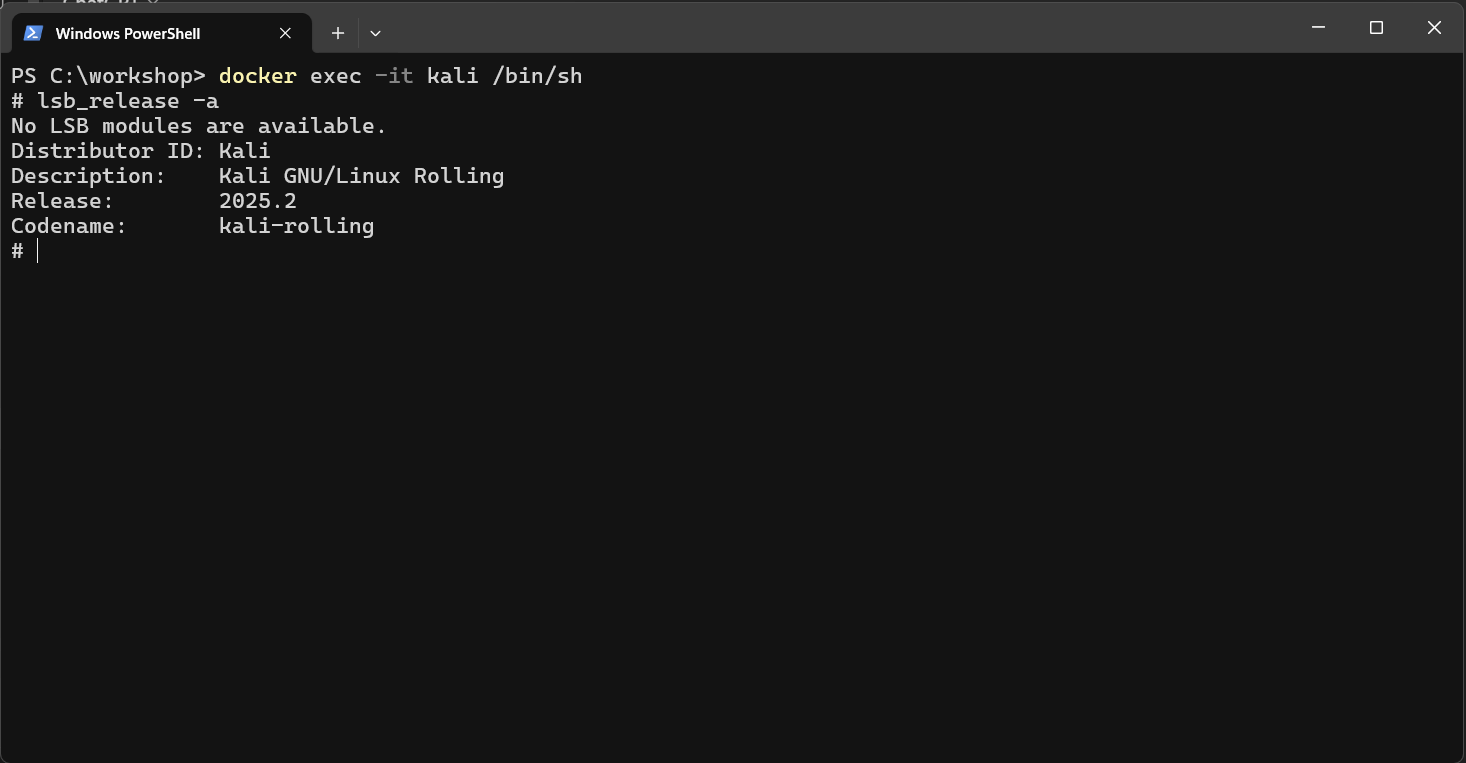
Accessing Kali Linux in command user interface: Kali Linux is an industry-standard platform for penetration testing, offering a wide range of security tools. To interact with the Kali Linux container, you can use the following command in the Windows command prompt:
docker exec -it kali /bin/sh
This command opens a shell inside the Kali Linux container, allowing you to run tools like nmap, Hydra, and Metasploit. Since Kali Linux is running in a container, you can practice penetration testing without worrying about damaging your host system.
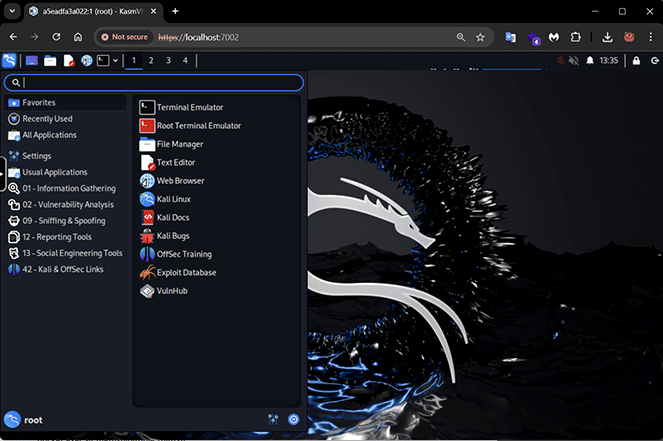
Accessing Kali Linux in graphical user interface through the browser: We can access the Kali Desktop GUI through any web browser available in Windows at https://localhost:7002.
Login credentials for Kali Linux are: Username: kasm_user, Password: password
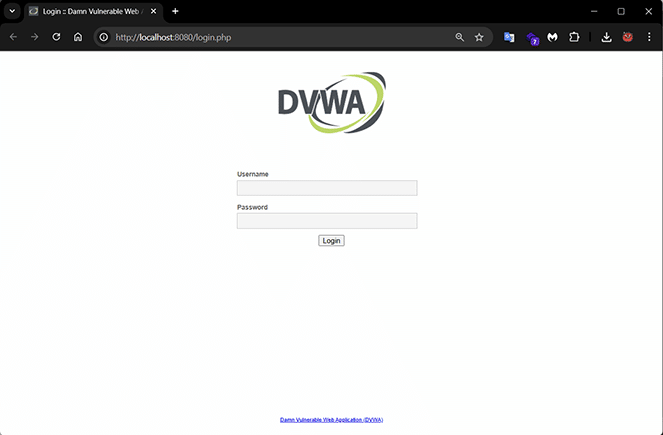
Accessing DVWA in graphical user interface through browser: DVWA provides a safe environment to practice web application vulnerabilities. You can access the DVWA interface through any web browser available in Windows at http://localhost:7001.
Login using the default credentials (Username: admin, Password: password) and explore common vulnerabilities such as SQL injection, cross-site scripting (XSS), and file inclusion. DVWA is ideal for both beginners and experienced security professionals to hone their web application security skills as illustrated in Figure 5.
Accessing Metasploitable in command user interface: Metasploitable is designed to simulate a vulnerable system that can be exploited using tools like Metasploit. To access the Metasploitable container, use the following command:
docker exec -it metasploitable /bin/sh
Metasploitable provides a variety of exploitable services, such as insecure FTP servers, weak database configurations, and vulnerable web services. It’s an excellent environment for practising more advanced exploitation techniques.
Web access and credentials: In addition to interacting through the terminal, some of these services can be accessed via a web browser.
- DVWA: http://localhost:7001
- DVWA: Username: admin, Password: password
By following these steps, you now have a fully functional security lab where you can test, practice, and explore various security tools and techniques. Docker Compose ensures that this environment is easy to manage and can be brought up or taken down with minimal effort.
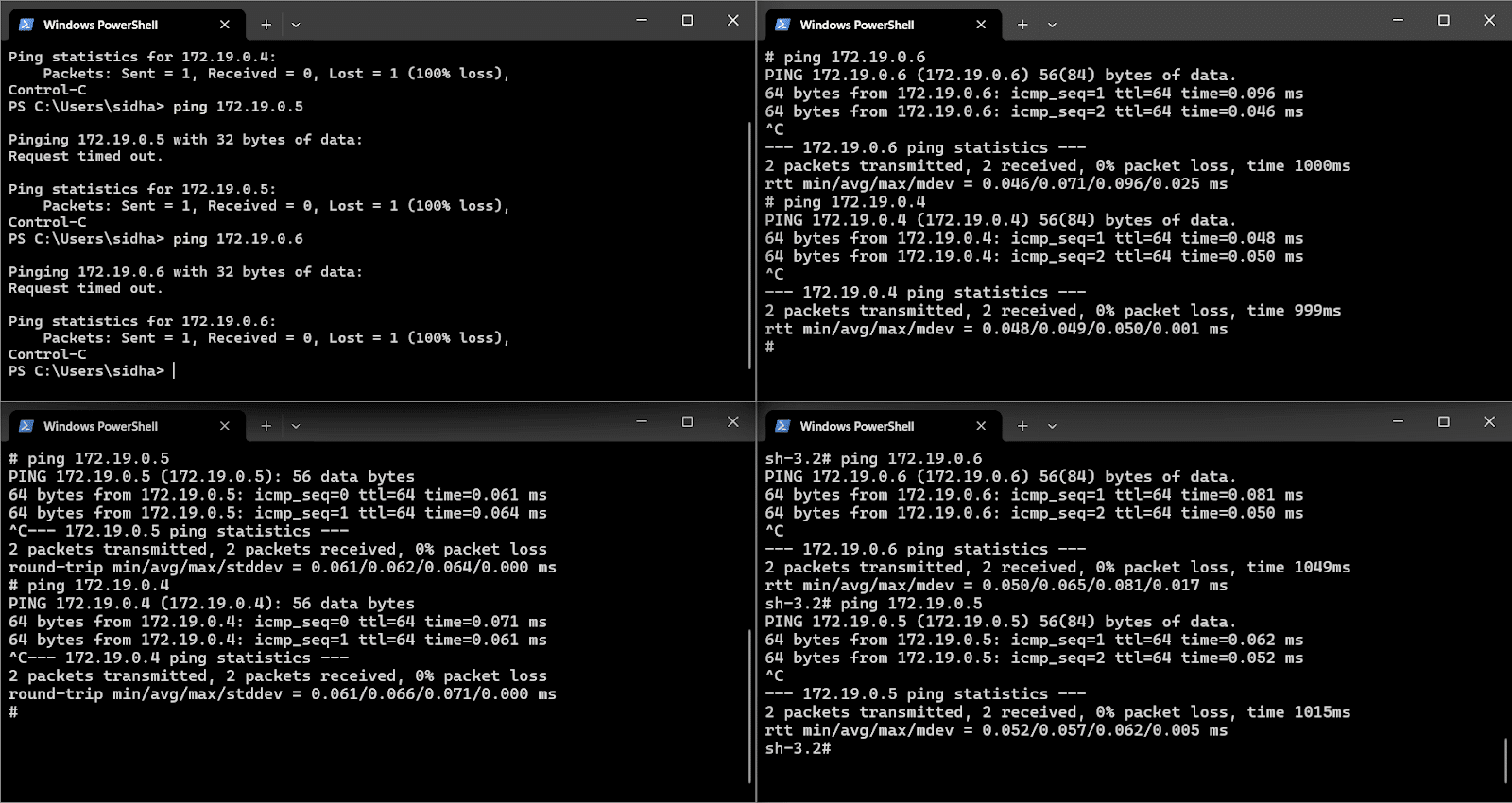
Now, as we have started all the containers, Kali is running with the IP 172.19.8.5; DVWA is running with the IP 172.19.8.6; and Metasploitable is running with the IP 172.19.8.4. After starting the containers, the devices can successfully ping with each other within the Docker network. This confirms that all the machines are interconnected and can communicate securely inside the isolated testbed environment as illustrated in Figure 5.
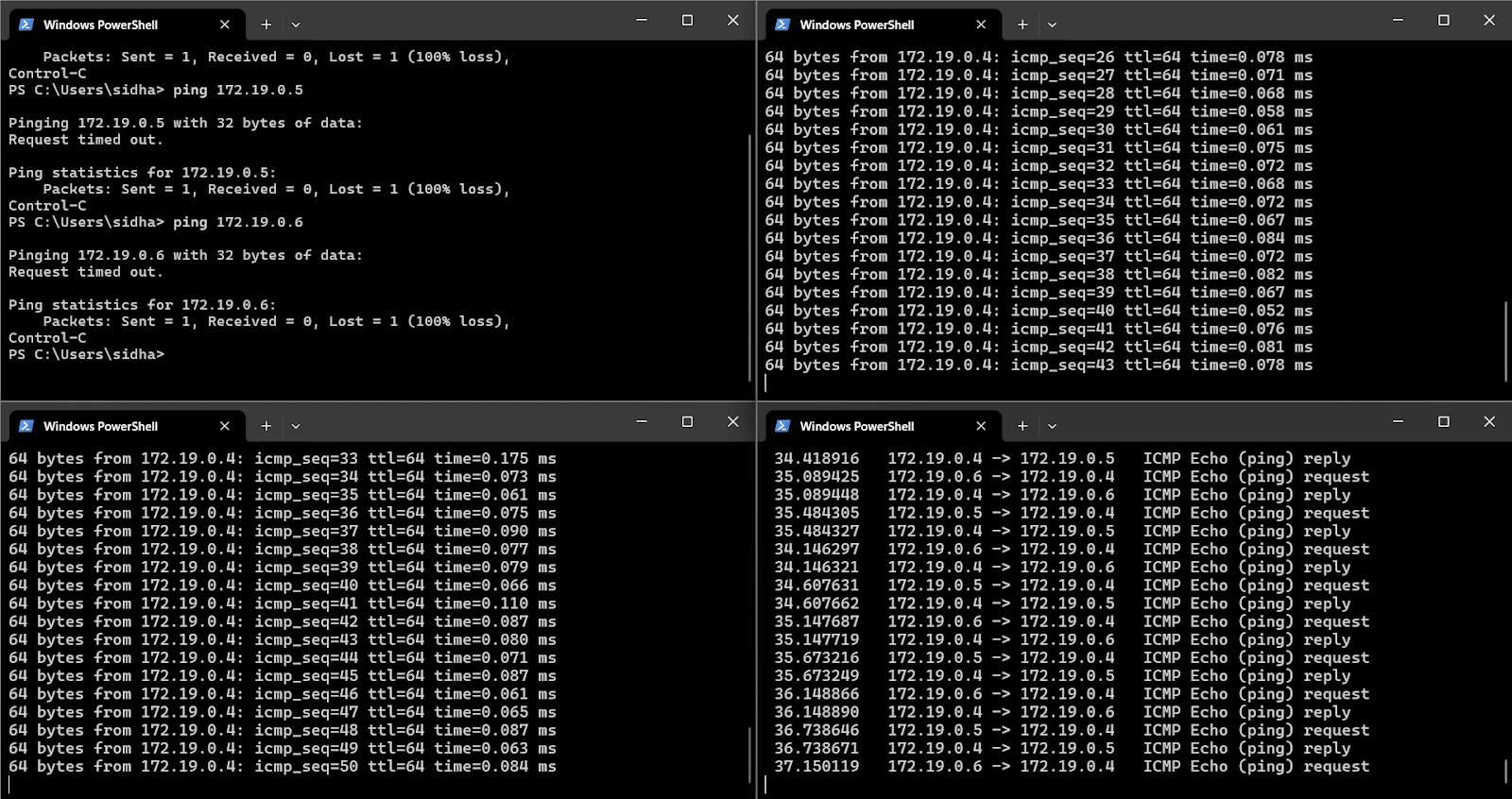
Let us check the basic connectivity between the Docker images. Figure 6 clearly shows that attempting to ping the container IPs (such as 172.19.8.5 and 172.19.8.6) from the Windows host results in ‘Request timed out’ and 100% packet loss; however, the containers themselves can successfully ping each other within the Docker network and are received at Metasploitable, as indicated by the continuous ICMP replies between the internal IP addresses. This demonstrates that the containers are fully interconnected and can communicate with one another, but remain isolated from the host system, ensuring the testbed’s security and containment as illustrated in Figure 7.
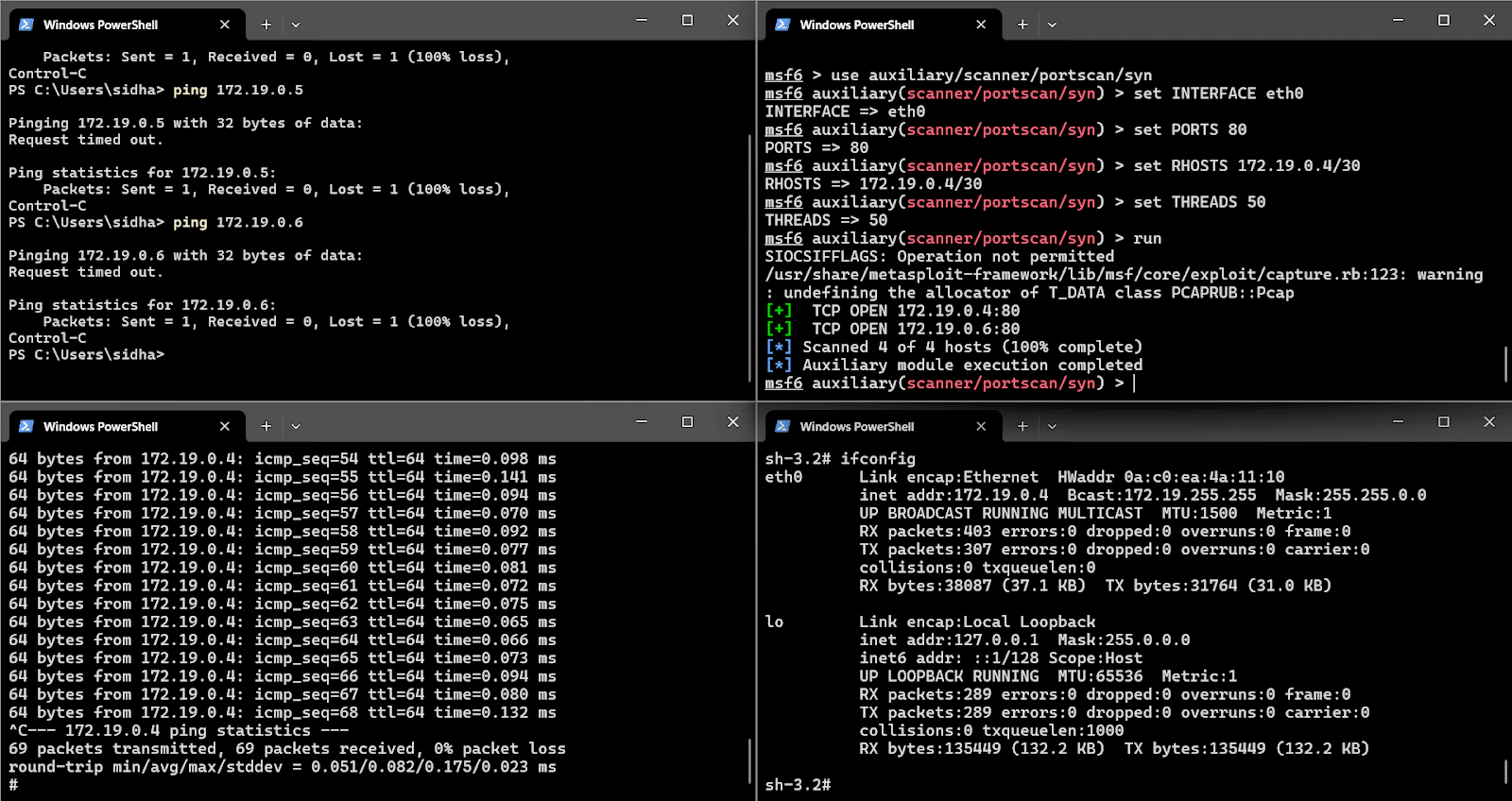
The top right panel in the figure shows the exploitation of Metasploitable images with the IP address 172.19.0.4 from the Kali Linux image with the IP address 172.19.0.5 using one of the auxiliary scanner modules of Metasploit. SYN port scan was run from Kali container, successfully detecting an open port 80 on Metasploitable, which highlights the ability to perform realistic penetration testing scenarios entirely within the testbed. In addition to the detection of open port in the mentioned container, this scanner finds the open ports in the 4 IPs as mentioned by the CIDR notation 4. Of the 4 IPs available in the subnet, 2 IPs have TCP open ports, which are a perfect entry point for security researchers to enter the system for further security experiments.
Running a security testbed using Docker containers on Windows with WSL 2 offers significant advantages over traditional virtual machine environments. This setup is highly efficient, allowing multiple machines to run smoothly with a much smaller memory footprint and faster startup times, thanks to containers sharing the host OS kernel rather than each requiring a full operating system. As a result, you can deploy and manage many interconnected security lab environments simultaneously without the heavy resource consumption and sluggish performance often associated with virtual machines. This makes Docker-based testbeds not only more scalable and cost-effective, but also ideal for dynamic cybersecurity experimentation and training.
You can run multiple security-focused machines in this setup—like Kali, DVWA, Metasploitable, and Snort—as interconnected Docker containers, all within an isolated virtual network. One standout advantage is that while these containers can freely communicate with each other for realistic attack and defence scenarios, they are not accessible from the Windows host machine. This dramatically reduces the risk to your primary operating system, ensuring that any vulnerabilities or exploits tested within the containers remain safely contained. Additional benefits include easy setup and management, reproducibility of your lab environment, and the performance enhancements provided by WSL 2’s native Linux kernel support. Overall, this approach offers a safe, efficient, and highly customisable platform for hands-on security experimentation without compromising your host system.