






















































As containerized environments grow more complex, monitoring and managing them effectively becomes important for developers and system administrators. This is where Lazydocker plays a part.
Docker has become a widely adopted platform for developing, deploying, and managing applications using container technology. Its architecture enables efficient communication between the Docker client and daemon while managing essential resources such as containers, images, volumes, and networks.
Terminal User Interfaces (TUIs) such as Lazydocker simplify Docker operations by providing a visual and interactive way to manage containers, view logs, inspect resources, and perform maintenance tasks.
Docker architecture
Docker follows a client-server architecture where the Docker client communicates with the daemon to perform container-related operations.
The Docker client is the command-line interface (CLI) that users interact with to build, start, or stop containers. The Docker daemon runs in the background and manages Docker objects, including containers, images, networks, and volumes. It listens for requests from the client through REST APIs and executes the required actions. This separation allows users to control Docker resources while the daemon handles the underlying container lifecycle and resource management.
Docker resources
Containers
Containers are lightweight, isolated environments that package and run applications along with their required dependencies.
Images
Images are read-only templates used to create containers and contain the application code, libraries, and configuration needed for execution.
Volumes
Volumes provide persistent storage for containers, allowing data to remain available even when containers are removed or recreated.
Networks
Networks enable communication between containers and external systems by providing connectivity and controlled data exchange.
Terminal User Interfaces (TUIs) improve operational efficiency by providing an interactive and visual way to manage complex systems directly from the terminal. They reduce the need to remember multiple commands, simplify monitoring tasks, and allow faster access to logs, resource usage, and container controls. TUIs like Lazydocker help developers troubleshoot issues quickly, manage resources effectively, and improve productivity in container-based environments.
Installing Lazydocker
Before installing Lazydocker, make sure you have Docker installed (version >= 29.0). To verify if Docker exists, run:
$ docker –version
And to check the details, run:
$ sudo docker info
Now install Lazydocker in the Linux system by using the official installation script:
$ curl https://raw.githubusercontent.com/jesseduffield/lazydocker/master/scripts/install_update_linux.sh | bash
The binary is installed to ~/.local/bin by default. If it’s not in your PATH, make sure to add it too.
Before running any commands related to Docker, ensure the user has access. To do that, use the following command:
$ sudo usermod -aG docker

$USER
Once Lazydocker is installed, start the Docker daemon using:
$ sudo docker ps
To start the application, use:
$ lazydocker
Monitoring running containers
To monitor a running container, first run a container:
$ docker run -d --name my-nginx -p 8080:80 nginx
Here, we ran a nginx container. Now, when we go to the Lazydocker TUI, we can find the details of the container (my-nginx) as seen in Figure 1. In the interface, you can click on the various options available to get detailed information without giving a host of Docker commands, which is the primary advantage of this tool.
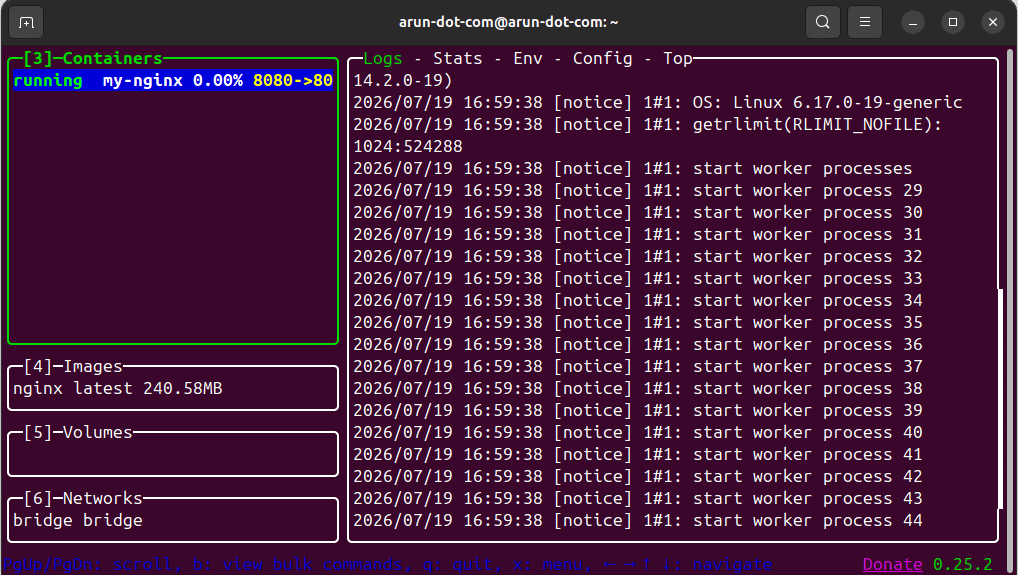
You can now:
- Select my-nginx with the arrow keys.
- Press Tab to switch between views.
- Open Logs to see container logs.
- Open Stats to watch CPU and memory usage.
- Open Inspect to view configuration details.
You can also visit http://localhost:8080 in your browser to generate some activity.
Then, come back to the Lazydocker interface to see the relevant logs generated.
Lazydocker is especially useful when you’re developing applications with multiple containers. For example, if you start a project with Docker Compose:
$ docker compose up -d
…and it creates frontend, backend, postgres and redis services, Lazydocker lets you:
- Monitor all services in one interface.
- Tail logs for any container.
- Check CPU and memory usage.
- Restart or stop services.
- Open a shell inside a container.
- Inspect networks, volumes, and images.
This makes it much easier to manage a multi-container application than repeatedly running docker ps, docker logs, and docker stats in separate terminals.
Executing Lazydocker in a container
Start Lazydocker and select the container with the arrow keys. Press E (or navigate to the Exec panel, depending on your Lazydocker version). Lazydocker will open an interactive shell inside the container. If the image doesn’t include bash, it will typically fall back to sh.
Any required command can be executed inside the container. For example, I have executed a simple echo command as shown in Figure 2. Since this is a nginx container, you can even execute $ curl http://localhost to check whether the application inside the container is responding.

Cleaning up unused resources
Lazydocker makes it easy to remove unused Docker resources without remembering all the docker prune commands.
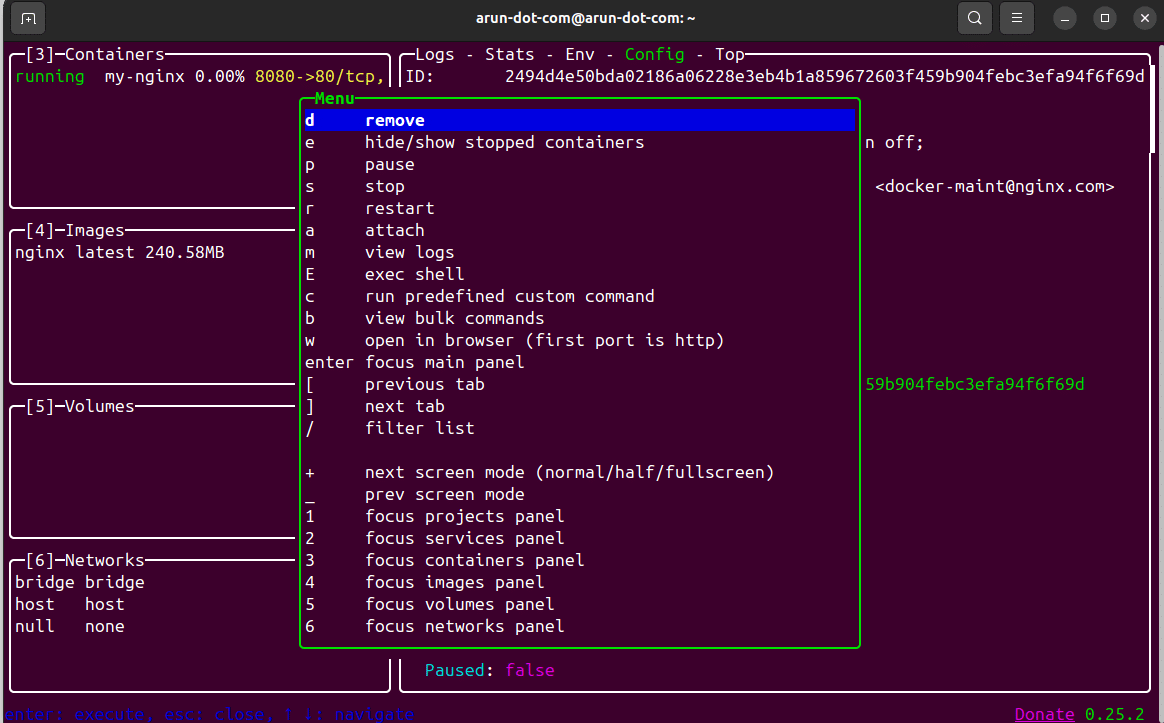
Start Lazydocker. Press x (in recent versions, this opens the Cleanup menu). You’ll see options to remove unused resources, such as stopped containers, dangling images, unused images, unused volumes, unused networks, and build cache as shown in Figure 3. Select the resources you want to remove and confirm. This is the safest way because you can choose what you want to delete.
Monitoring container health
Start Lazydocker by running $ lazydocker in your terminal. Once the TUI opens, select the running container you want to monitor and switch to the Stats panel. This panel provides real-time information about the container’s resource usage, including CPU usage, memory consumption, network I/O, and disk I/O (when available). These metrics update continuously while the container is running, allowing you to track resource usage and identify potential performance issues.
To monitor the application’s activity, switch to the Logs panel in Lazydocker. This view displays the container’s output in real time and is often the fastest way to identify problems. By watching the logs, you can detect issues such as application crashes, exceptions or stack traces, database connection failures, and containers that are repeatedly restarting.
Docker and Lazydocker together provide a powerful approach to managing modern containerized applications. By understanding Docker architecture, resources, and efficient monitoring practices, teams can improve reliability and streamline operations. Lazydocker enhances productivity by simplifying everyday container management tasks, enabling faster troubleshooting, better visibility, and more effective control over Docker environments.